
Everyday Memories
How to take dog photos with your phone
A practical guide to photographing your dog with a phone: find soft light, work at eye level, check focus, troubleshoot common problems and keep the original file.
To take dog photos with your phone, find soft light and bring the camera down to your dog's eye level. Check the eyes for focus, take a few frames while your dog is comfortable, and save the original of your favorite. If the photo looks wrong, adjust one thing at a time before digging into camera settings.
A clear portrait is useful if you want a keepsake. But don't overlook the photo of your dog curled up in the doorway, one ear turned toward you. That's worth saving too.
Images in this guide are AI-generated illustrations, not photographs from a camera test. Phone instructions link to the manufacturers' guides.
Before you start, make it easy for your dog
Choose a familiar, safe spot
Choose somewhere your dog already likes spending time, with room to wander away. Keep your usual outdoor safety precautions. A leash in the picture is better than a dog loose near traffic.
Open the camera before asking for attention. Have a familiar toy or an appropriate reward handy, and watch whether your dog is still interested. It's fine to photograph them lying down or going about their day.
Let your dog get comfortable with the phone
If your dog backs away when you raise the phone, lower it and give them room. Try again from farther away, or photograph something they are already doing. Avoid repeatedly moving the phone closer to get a reaction.
Battersea's dog-photography guidance recommends introducing equipment gradually and avoiding pressure on a nervous dog. If the activity seems uncomfortable for your dog, stop. There will be other chances.
Find soft light and a simple background
Start beside a window or in open shade
For an indoor photo, try a spot near a window where direct sun is not falling across your dog's face. Outside, look for open shade rather than a patchwork of sunlight and dark shadows. The American Kennel Club's photography guide also recommends softer light and paying attention to your shooting angle.
Take one photo before rearranging the room. Can you see the eyes, or has one side of the face disappeared into shadow? Try shifting your position and compare the next frame.
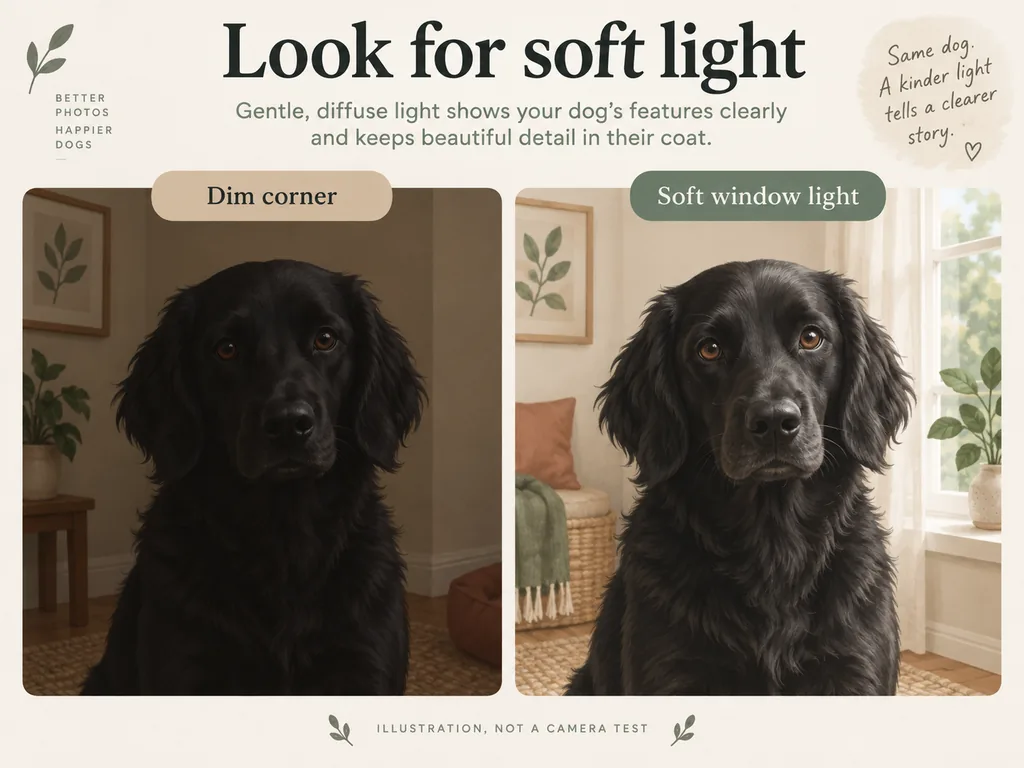
Illustrated lighting examples, not a controlled comparison.
Check the face, eyes and background before shooting
Look around the edges of the frame. Is there a table leg apparently growing out of an ear? A bright doorway pulling your eye away from the face? Move yourself a little before moving your dog.
Treat flash as optional, not a rescue button. If your dog reacts to it, stop using it and find a gentler setup. Adjust the scene before trying to solve everything with editing.
Get down to your dog's eye level
Frame the face without cutting off ears or the nose
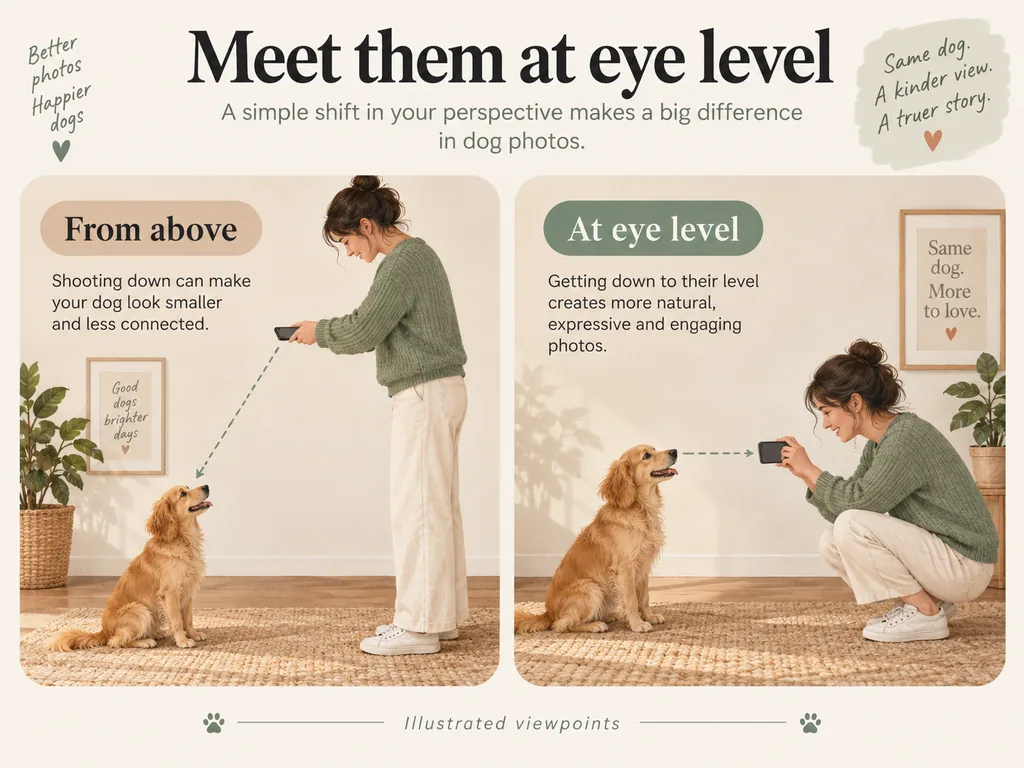
Crouch or sit so the phone is closer to your dog's eye height. Keep the dog safely on the ground. An overhead picture can be playful, but eye-level framing is a useful starting point for a face-first portrait.
Leave space around the head for a different crop later. A square print might need a different frame from the tall picture on your screen. Check both ears and the nose before pressing the shutter; you can't recover a clipped ear from that file.
Capture a portrait, an everyday moment and a small detail
Once you have a clear portrait, put the posing aside. Maybe your dog always rests their chin on the sofa arm. Photograph that. Save a close view of a paw or the gray fur around their muzzle, too, if it's a detail you want to remember. A detail shot won't replace a full-face reference for a portrait, but it belongs in your album.
For more ideas beyond posed photos, explore these small ways to save everyday pet memories.
Set focus and capture the moment on your phone
On iPhone: set focus, adjust exposure and use Burst when helpful
In Camera, tap the part of the image you want in focus. For a face-forward dog portrait, start near the eyes. Drag the exposure control beside the focus area up or down if the face looks too dark or bright.
Tapping is not the same as locking focus. Apple explains that touching and holding the focus area until AE/AF Lock appears locks those settings. That can help with a settled subject; reassess if your dog changes position. See Apple's focus and exposure instructions.
For a brief movement, Burst gives you several frames to choose from. In Apple's current instructions, swipe the shutter button left and hold, then release to stop. The volume-up shortcut requires enabling Use Volume Up for Burst under Settings > Camera. Check the Burst guide for your iPhone if your controls differ.
On Pixel: check Top Shot options for your model
Google's Top Shot guide separates the controls by model. It describes setting Top Shot to Auto on Pixel 10 and later, and Auto or On on Pixel 9a and earlier. Check your Camera settings against the instructions for your device.
Open the saved photo and look at the expression. The phone's suggested frame may not be your favorite.
On other Android phones: check the camera controls for your device
Burst gestures and motion-photo features vary. Use your phone maker's camera guide rather than assuming an iPhone swipe or Pixel setting applies to every Android phone.
For a resting dog, ordinary Photo mode is a sensible starting point. For movement, try the supported burst or motion option, then check what it saved. If every frame is blurry, work on the light and focus before taking another long sequence.
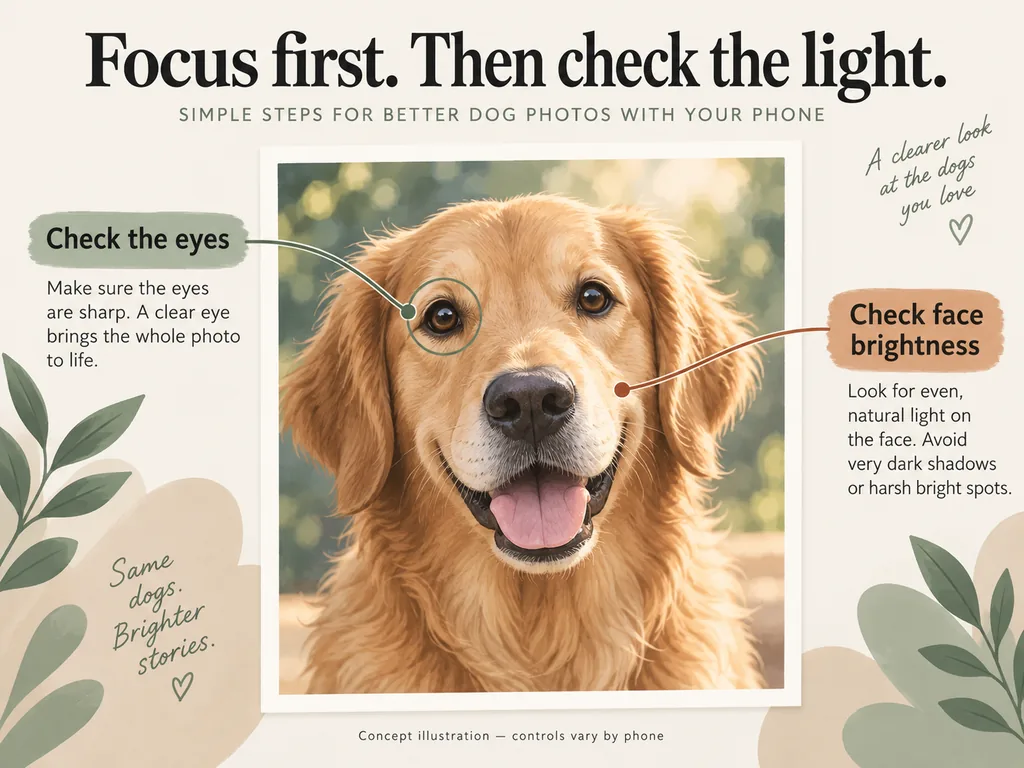
A concept illustration of what to check, not a phone screen.
Fix the most common dog-photo problems
The photo is blurry
Look at the whole picture before changing a setting. If the background is sharp but the dog's head is soft, check whether the dog moved or focus fell elsewhere. If everything looks smeared, steady the phone and try another frame in better light.
These are starting points, not a diagnosis of every blurry image:
| What you notice | What to check | What to try next |
|---|---|---|
| The background looks clearer than the face | Focus may be on the wrong area | Refocus near the eye and take another frame |
| The whole image looks soft | Phone movement or poor light | Hold the phone steadily; try a brighter, softly lit spot |
| The dog blurs during movement | Subject movement | Photograph a pause, or try your phone's supported burst option |
| The small preview looks fine | Detail may be hard to judge at thumbnail size | Open the saved original and inspect the face |
A black dog's face is hard to see
Look at the face before reaching for the brightness control. Can you see the eyes? Try a softly lit spot or a different angle. Check whether the head is getting lost against the background, too.
If your phone allows exposure adjustment, change it a little and review the saved image. Keep the coat's natural color. There is no single brightness setting that suits every black dog in every room, and turning the whole picture pale is not the goal.
Your dog looks away from the phone
Pause before asking again. Try a little more distance, or hold a familiar toy near the camera if that keeps the interaction comfortable. Skip loud or repeated noises when they make your dog uneasy.
If your dog would rather look out the window, photograph the side glance. Eye contact isn't required. Stop if they keep avoiding the activity.
Choose and save a photo for a print or keepsake
Check the original for clear facial details and useful crop space
Open the saved photo rather than judging only the camera preview. Zoom in enough to inspect the face, then zoom back out to check the composition. Look for visible eyes, recognizable coat markings and the features you want included.
You can keep a loosely framed original and make a separate cropped copy. That leaves more options if you later choose a different print shape or design.
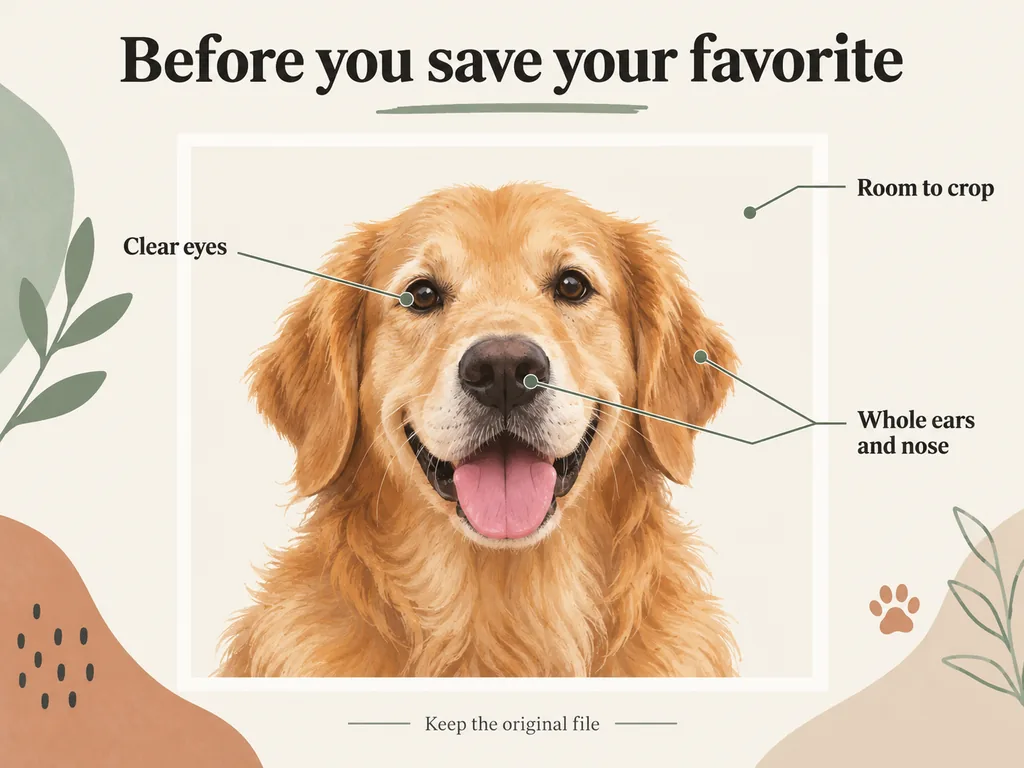
Keep the original file and check the product's photo requirements
Keep the original in an album or folder you can find again. A screenshot or a copy downloaded from a social post shouldn't replace it when you still have the source file. Make a separate copy for crops or edits.
When you choose a personalized piece, check the photo guidelines and the requirements listed for that item before uploading. Different layouts may need different framing or files; there is no universal file-size or pixel rule for every keepsake. Use a photo you own or have permission to use.
If you're choosing among older images for a memorial piece, the pet memorial photo guide can help with that decision. You can also just save today's photo without having a product in mind.
Quick questions about phone dog photography
What camera settings should I use for dog photos?
Start in ordinary Photo mode with a clear view of the face. Adjust focus and brightness if needed; use a supported burst or motion option for movement. The useful settings depend on the phone and the scene, so avoid treating someone else's exact camera settings as a universal recipe.
Do I need Portrait mode for a good dog photo?
No. Try ordinary Photo mode first. If you like your phone's Portrait effect, take another version and compare the saved images, especially around the ears and fur. Choose the one that preserves the details you want rather than the one with the strongest blur.
Can I use a screenshot for a pet keepsake?
Use the original photo when you have it. Whether a screenshot is usable depends on its remaining detail and the product's requirements. A larger-looking preview alone does not establish that a file is suitable.